安装 Checkify WordPress 插件,通过以下方式连接您的站点扫描 QR 代码,然后选择 Checkify Pass 应出现的位置。
将 Checkify 与 WooCommerce 结账、注册入口、表单、评论或自定义页面结合使用。在应用程序或业务面板中创建一个 Checkify Pass ID,然后将其粘贴到 WordPress 插件中。
从一个入口开始,例如 WooCommerce 结帐或注册,然后在准备好后展开。
该插件将您的 WordPress 站点连接到 Checkify,然后让您选择应显示 Checkify Passes 的位置。
从 WordPress 管理面板添加 Checkify 或上传 Checkify 提供的插件 ZIP。
打开WordPress 左侧面板中的 Checkify 并扫描 QR 代码以将您的站点连接到 Checkify。
选择您需要的网关,例如 WooCommerce 结帐、注册、登录、表单或自定义选择器。
Install only from these checkify.me URLs. Each ZIP includes a SHA-256 checksum so you can verify the file before uploading to WordPress.
Required for every Checkify WordPress integration. Connect your site, store your Pass ID, and power satellite plugins.
de3b1d15672cb2513df4e43c3bebde64cc43911747da924b7e2ce38dc358b2f5
After downloading, run: shasum -a 256 your-file.zip (macOS/Linux) or CertUtil -hashfile your-file.zip SHA256 (Windows). The hash must match exactly.
Age verification for WooCommerce checkout, cart, or your entire storefront. Requires Connector and WooCommerce.
6df9a5ab189e7a9ea3f05673d10ba36bf69da1f19f8778ae484804be192f250c
After downloading, run: shasum -a 256 your-file.zip (macOS/Linux) or CertUtil -hashfile your-file.zip SHA256 (Windows). The hash must match exactly.
Also available on WordPress.org
Human verification on WordPress login and registration. Requires Connector.
d0dfd52636a22853609092b8ad33716f288b3d412f322a9b816a4e65c6ea2e82
After downloading, run: shasum -a 256 your-file.zip (macOS/Linux) or CertUtil -hashfile your-file.zip SHA256 (Windows). The hash must match exactly.
Require Checkify verification before comments are posted. Requires Connector.
129f886d0a347869af00330367f9fa4424f9af877dfa83855127461179e59949
After downloading, run: shasum -a 256 your-file.zip (macOS/Linux) or CertUtil -hashfile your-file.zip SHA256 (Windows). The hash must match exactly.
Human verification before Contact Form 7 submissions are sent. Requires Connector and CF7.
c17db0cc54cc3e15b9d17a37e0b5bbab4667e40aafaa1d18d1b5e70d470d3d44
After downloading, run: shasum -a 256 your-file.zip (macOS/Linux) or CertUtil -hashfile your-file.zip SHA256 (Windows). The hash must match exactly.
Protect pages or posts with a Checkify verification gate. Requires Connector.
a8c9c28dd93841637b61e6393fddbce4690d1a8e1c6022a1c18414a695dddab1
After downloading, run: shasum -a 256 your-file.zip (macOS/Linux) or CertUtil -hashfile your-file.zip SHA256 (Windows). The hash must match exactly.
Follow the step-by-step guide below to install the plugin, connect your site, and add your first Checkify Pass. A narrated video walkthrough is coming soon.
View setup steps按照以下步骤安装插件,连接您的站点,选择您的网关,然后添加您的 Checkify Pass ID。
步骤1
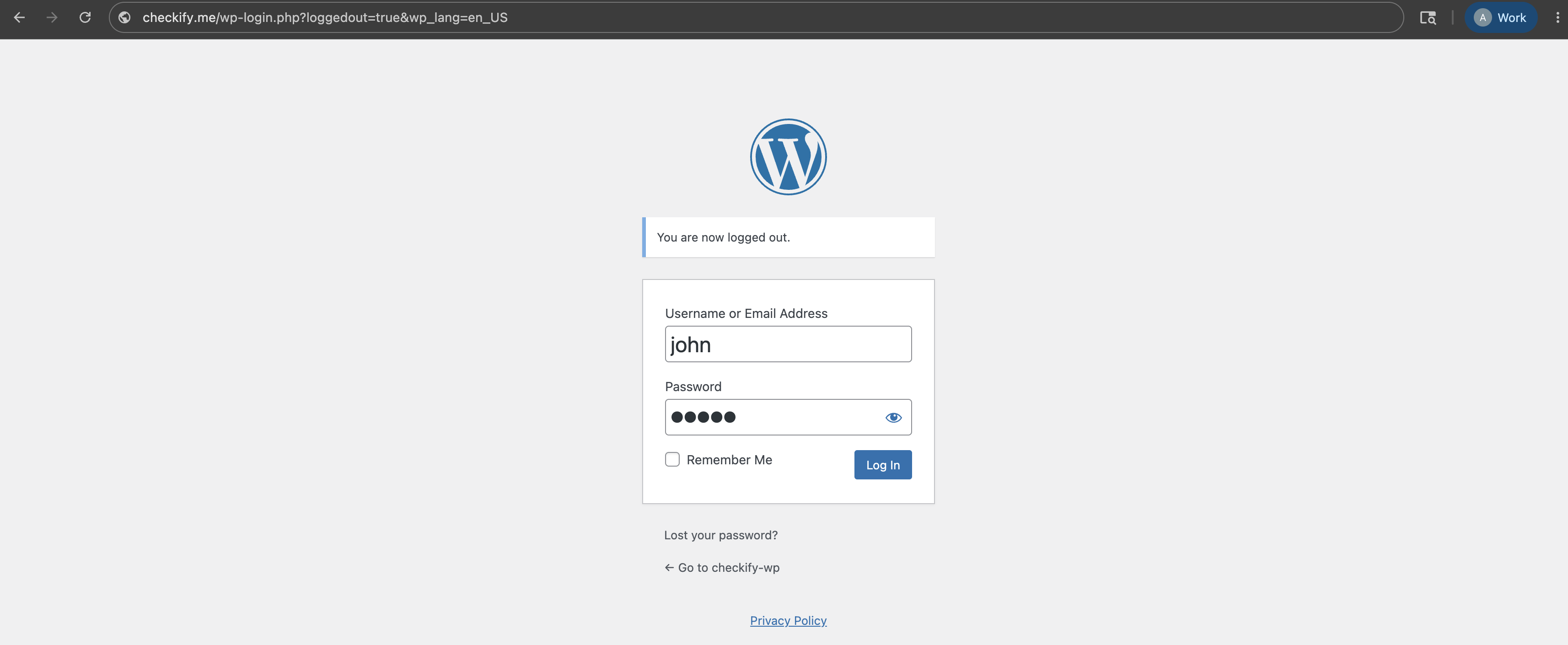
首先登录您的 WordPress 管理仪表板。通常可以在您的网站地址后跟 /wp-admin 找到。
步骤2
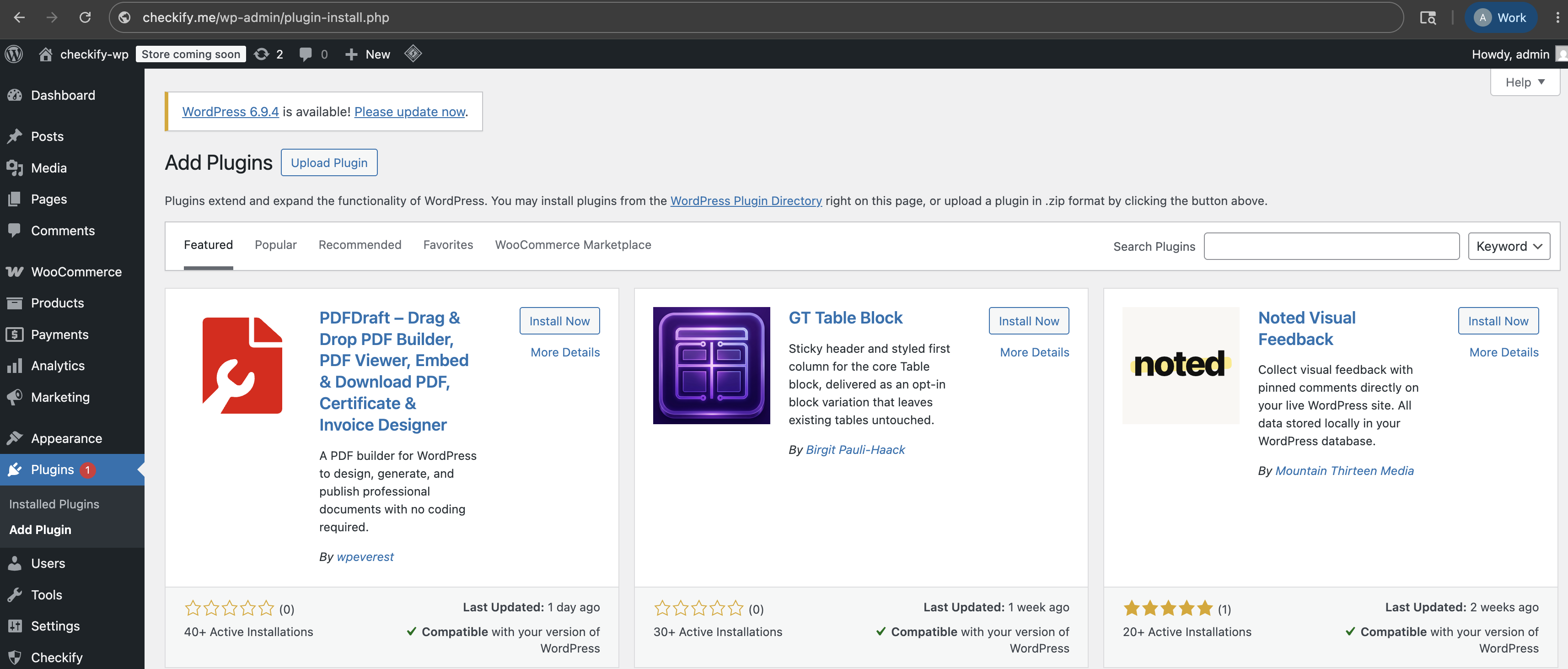
在左侧WordPress菜单中,打开插件,然后选择添加插件。
步骤3
在WordPress插件目录中搜索Checkify。如果您直接从 Checkify 收到插件,请上传 ZIP 文件。

步骤4
在插件下,打开已安装的插件并确保 Checkify 插件处于活动状态。

步骤5
插件激活后,WordPress 左侧面板中会出现 Checkify 菜单项。打开它以开始连接您的站点。

步骤6
Checkify 插件显示 QR 代码。使用Checkify扫描,将您的WordPress网站连接到您的Checkify帐户。
连接后,您的WordPress网站将通过Checkify连接器链接。
您的WordPress网站现已连接到Checkify并可以使用Checkify Passes.

步骤7
在Checkify插件中搜索您需要的门。例如,您可以选择 WooCommerce 结帐门、注册门、登录门、表单门或自定义选择器。

步骤8
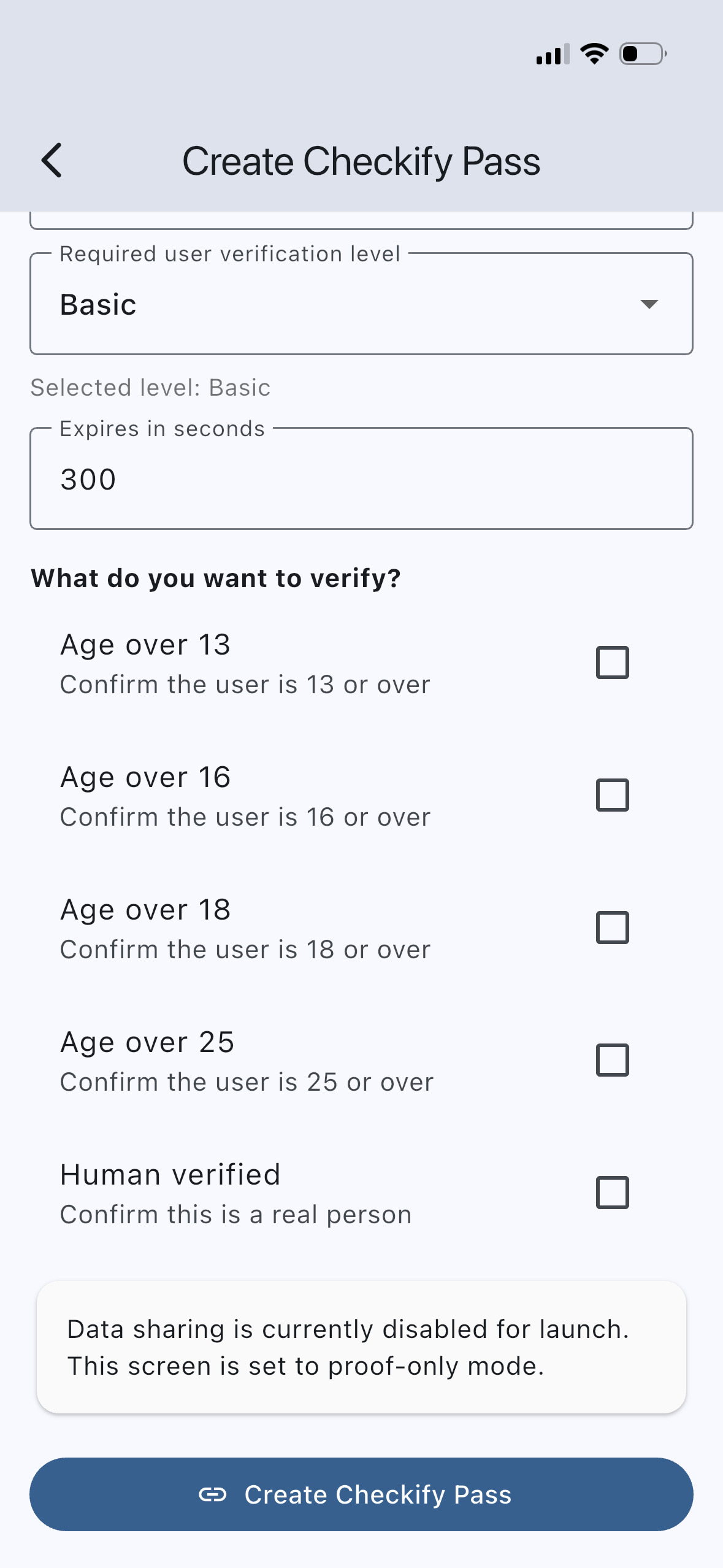
在 Checkify 应用程序或业务面板中创建 Checkify Pass。通行证定义了证明请求,例如人工验证、18 岁以上或一起进行多个证明。
“结帐前,确认该用户是人类且年满 18 岁。”
步骤9
在 Checkify WordPress 插件中打开选定的门,并将 Checkify Pass ID 粘贴到插件详细信息页面。
每当触发选定的门时,插件将使用该 Pass ID。
Checkify Pass ID: YOUR_CHECKIFY_PASS_ID

步骤10
启用所选门并在您的 WordPress 站点上进行测试。当用户到达该流程时,Checkify 将显示正确的 Pass 请求。
Steps 1–10 cover Checkify Connector only. Each plugin adds its own gate — install the plugin you need and follow its dedicated setup guide.
Age verification at checkout, on cart pages, or across your entire storefront. Supports category restrictions and block checkout.
WooCommerce setup guide →Human verification on WordPress login and registration flows.
Download plugin →Gate comments behind a Checkify Pass before they are posted.
Download plugin →Require verification before Contact Form 7 submissions are sent.
Download plugin →Protect selected pages or posts with a Checkify verification gate.
Download plugin →安装插件,连接您的站点,选择一个网关,然后添加您的Checkify Pass ID。